J1 #plex #media #transcoding
Configuring Plex Media Clients to Disable Transcoding
This guide explains how to configure your Plex media clients to avoid using transcoding, which can significantly strain systems with weak GPUs.
Overview
Transcoding can be resource-intensive, particularly on systems with limited GPU capabilities. By configuring your media clients to direct play or use software that matches your media library, you can improve performance and reduce unnecessary server strain.
Configuration Steps
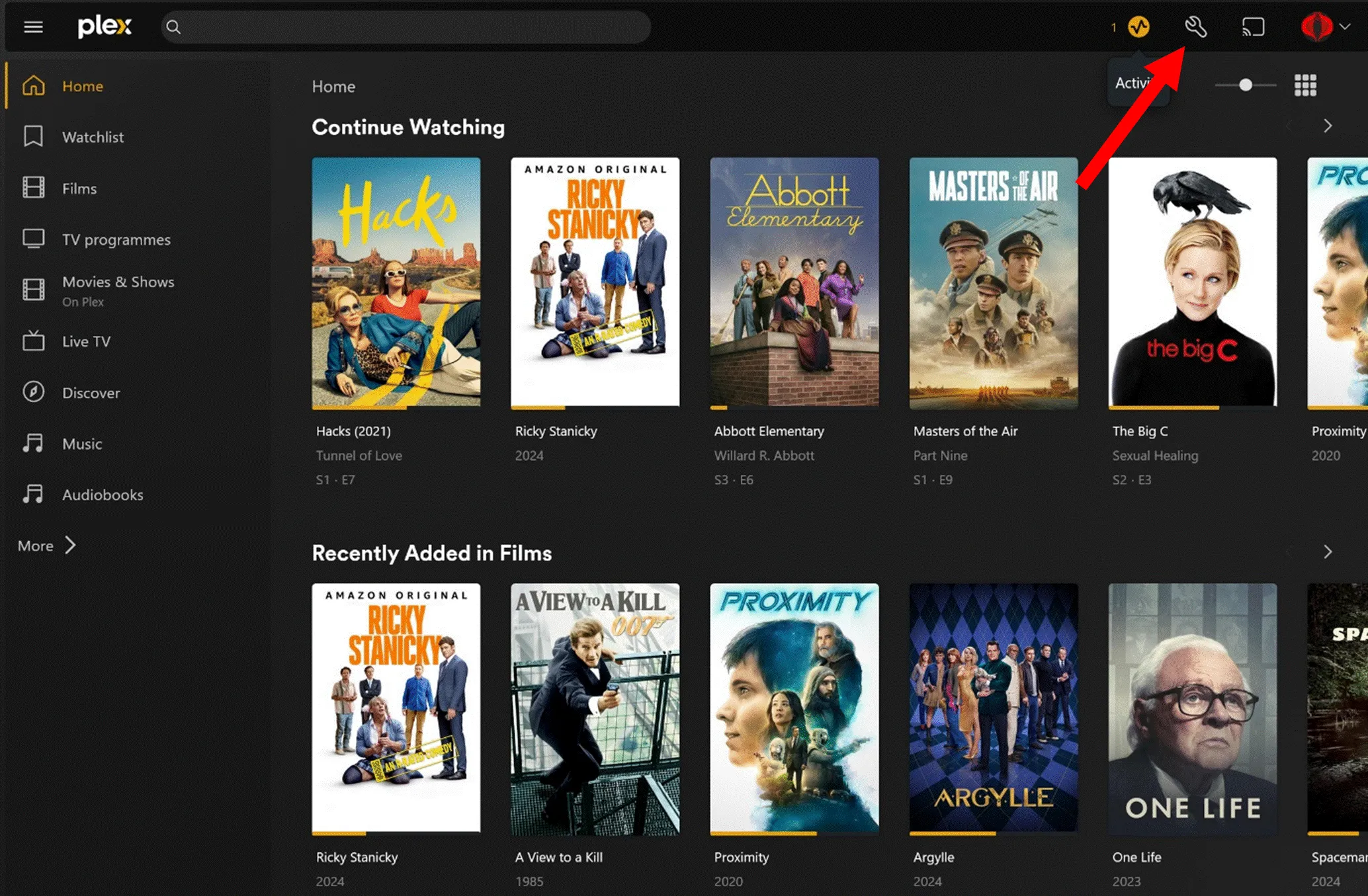
Website Client
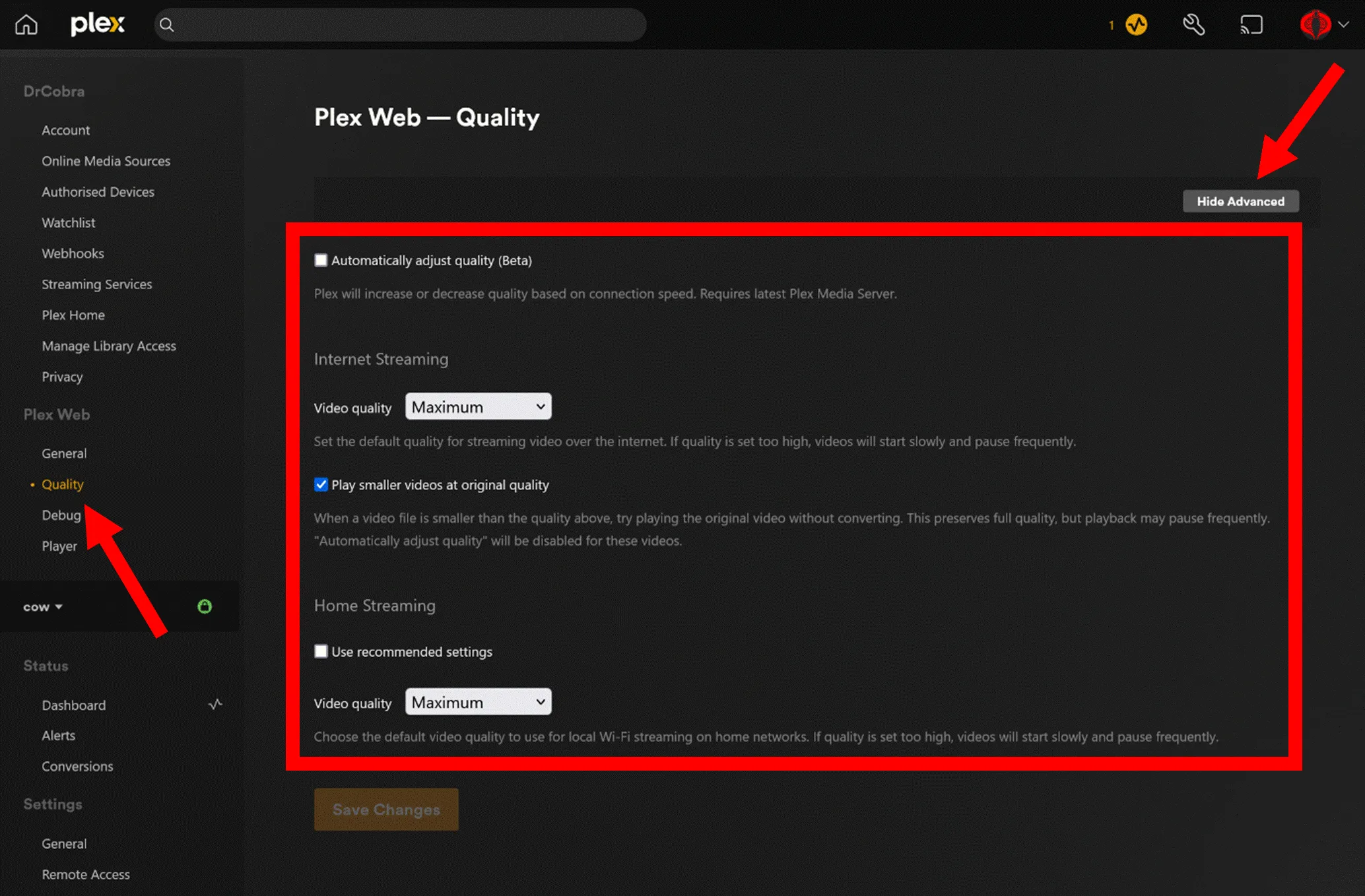
Please ensure that ALL settings in Quality match the configuration shown in the image.
Samsung TV Client
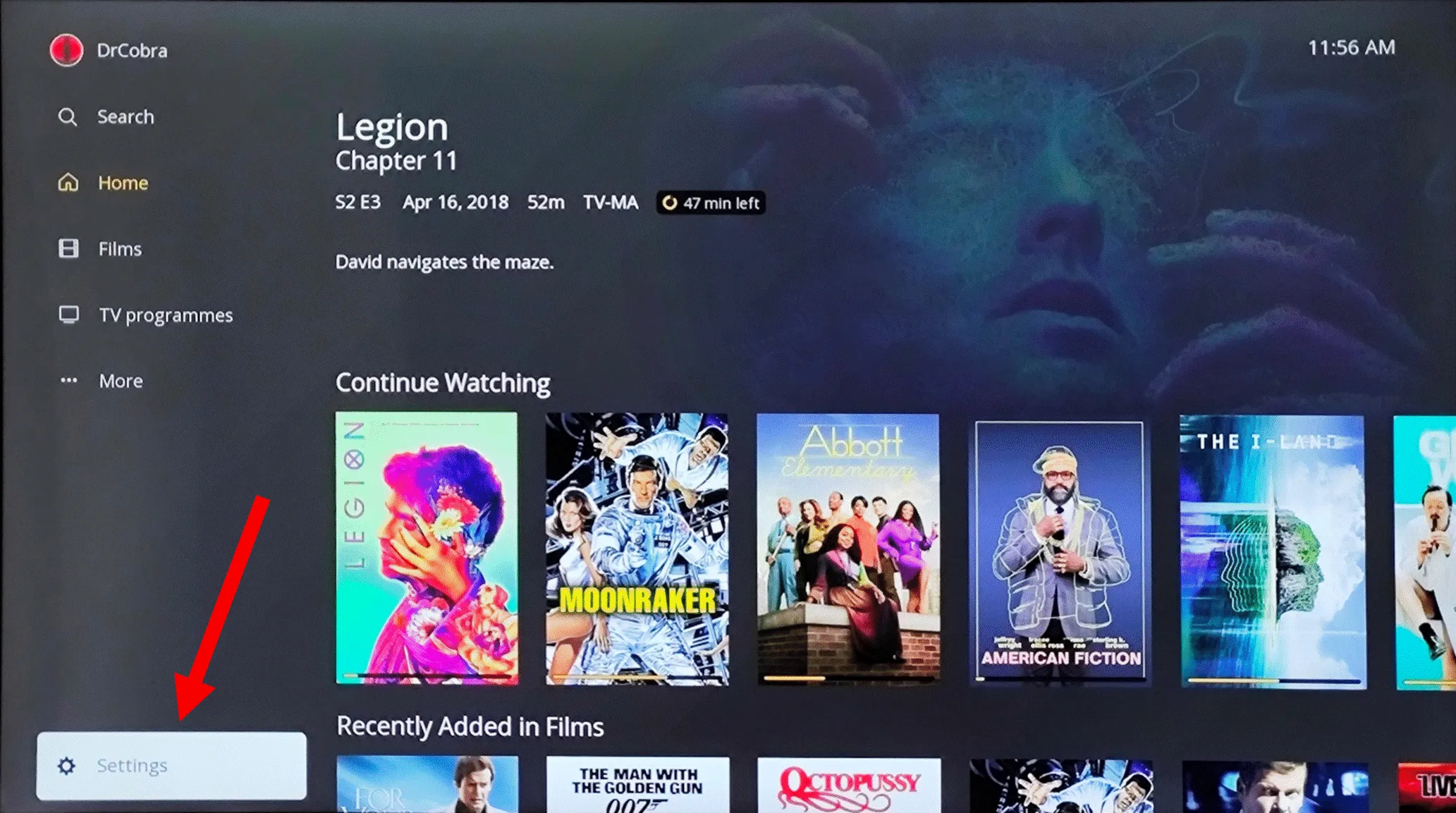
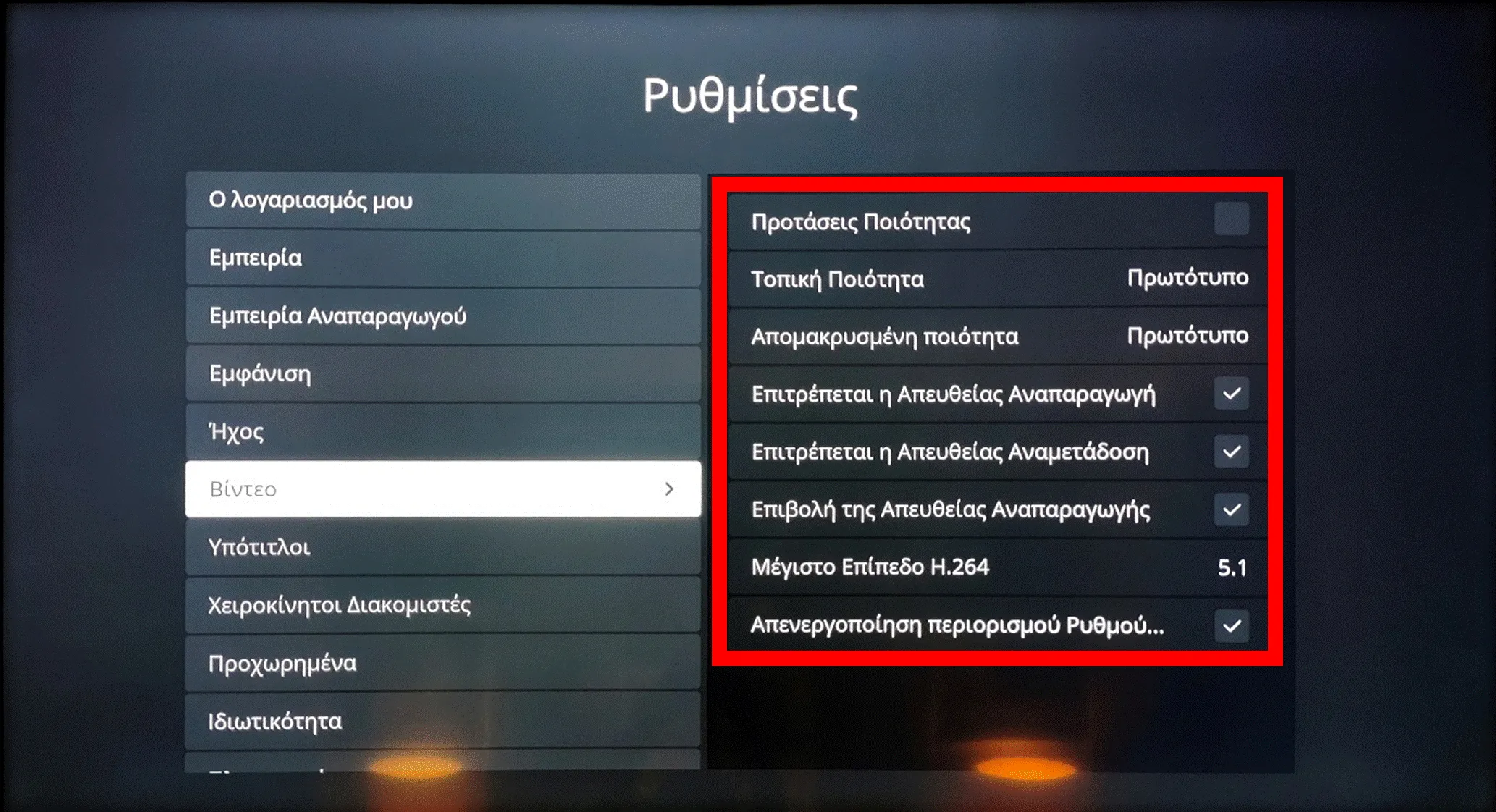
Please ensure that ALL settings in Video match the configuration shown in the image.
Android TV Client
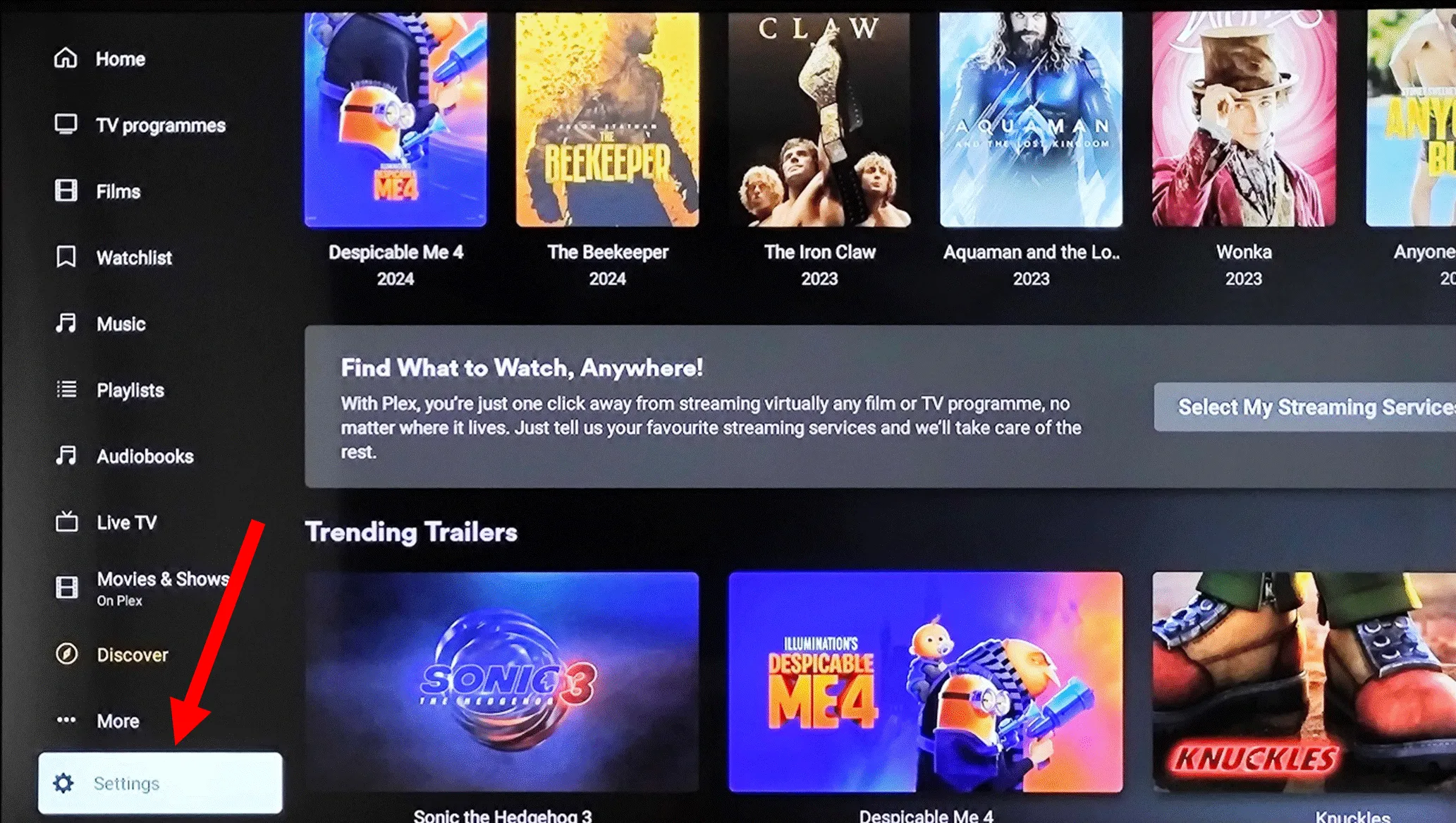
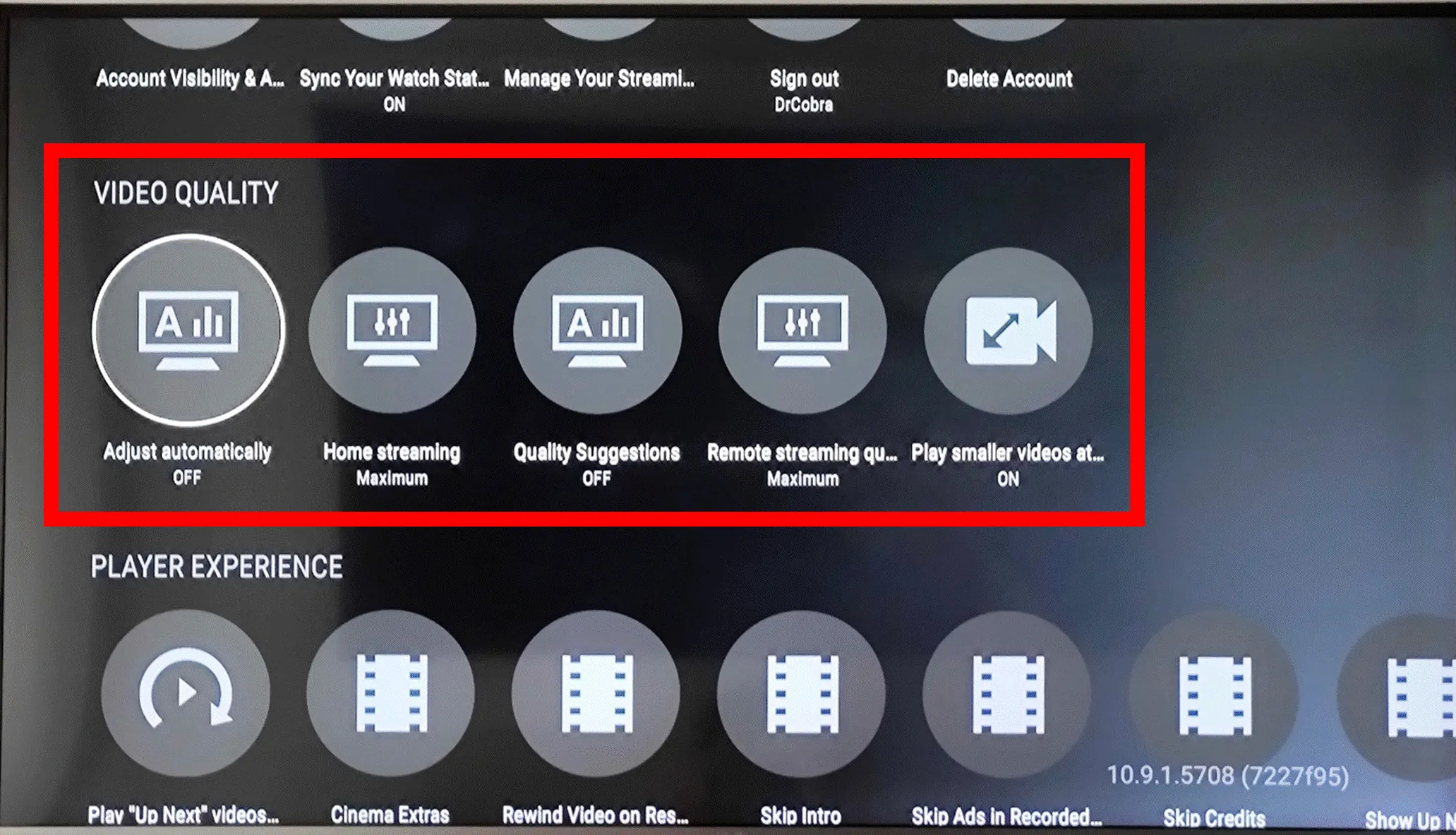
Please ensure that ALL settings in Video Quality match the configuration shown in the image.
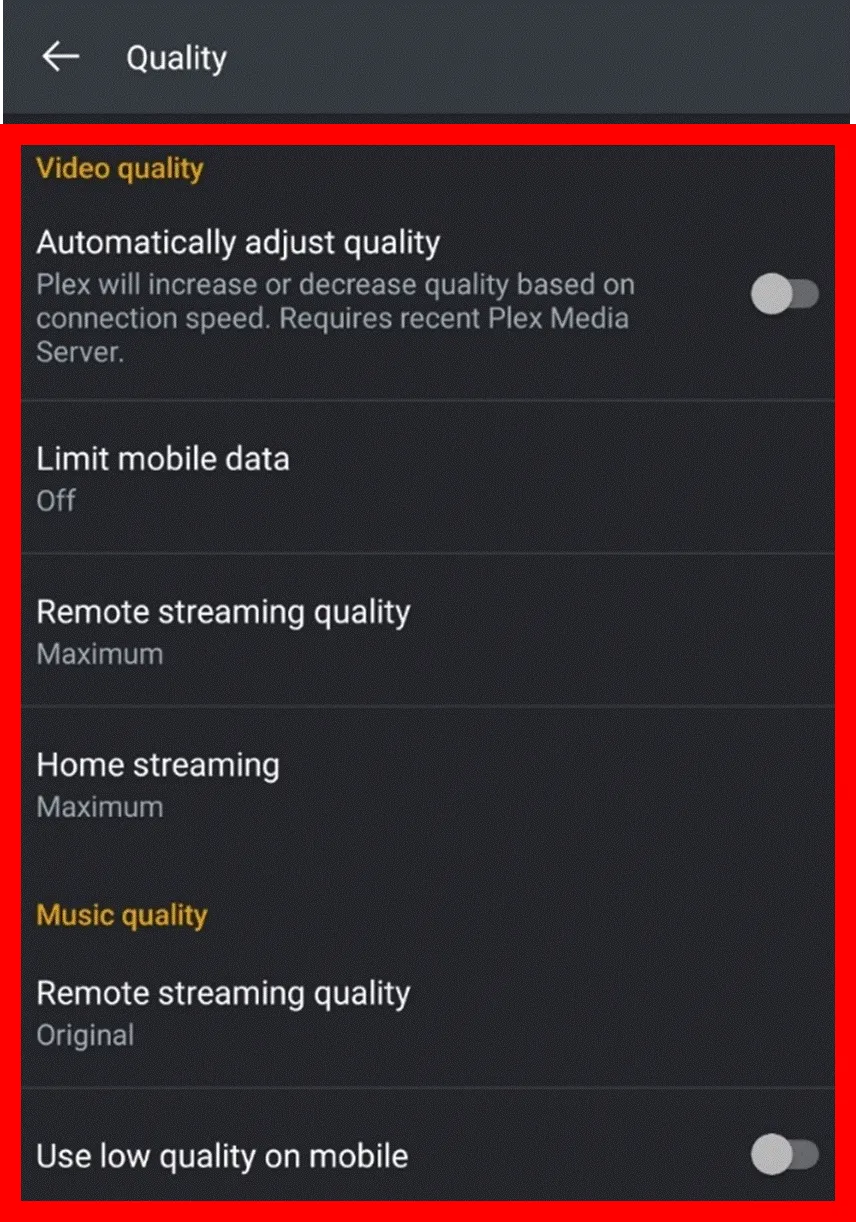
Android Phone Client
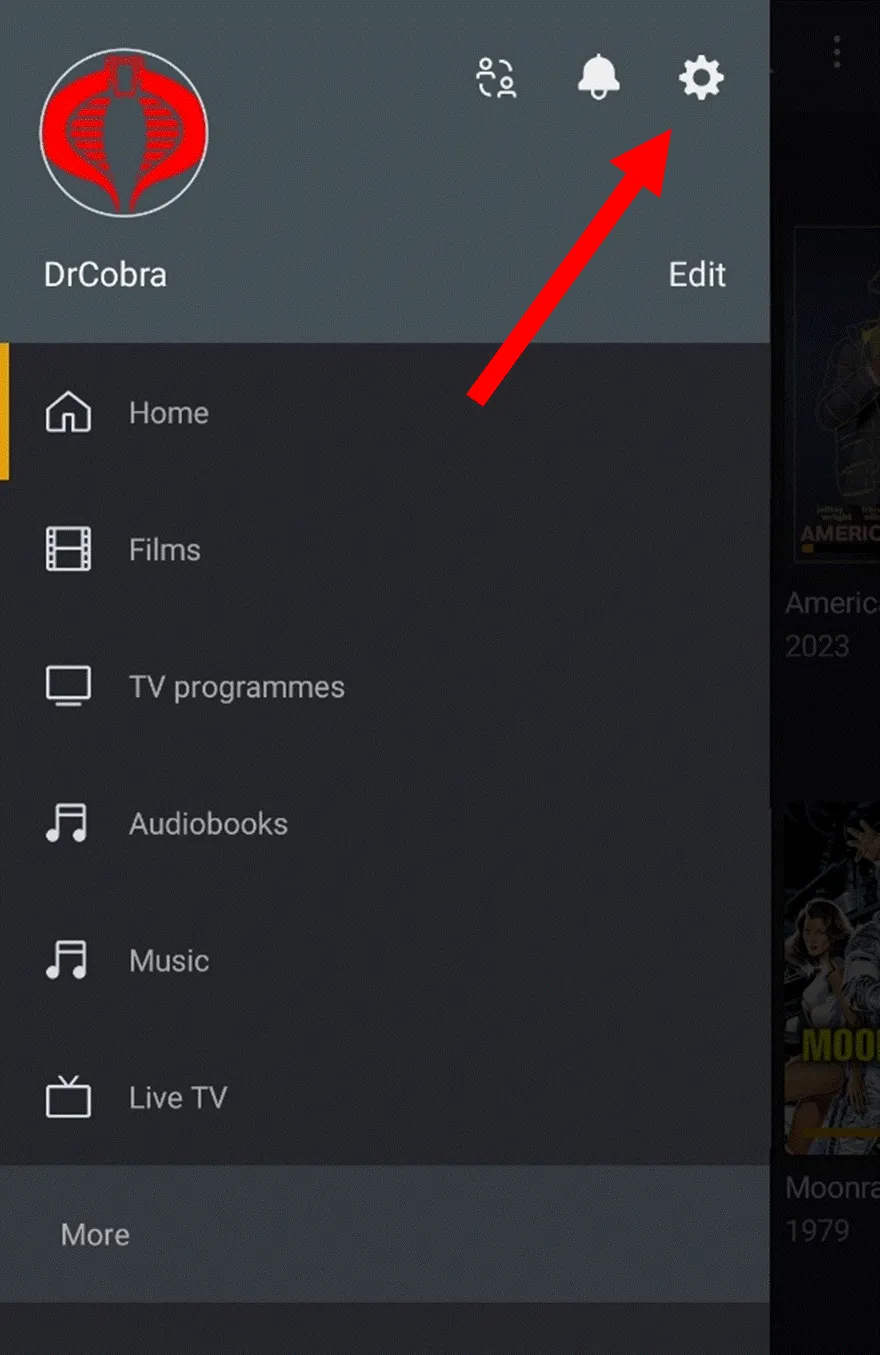
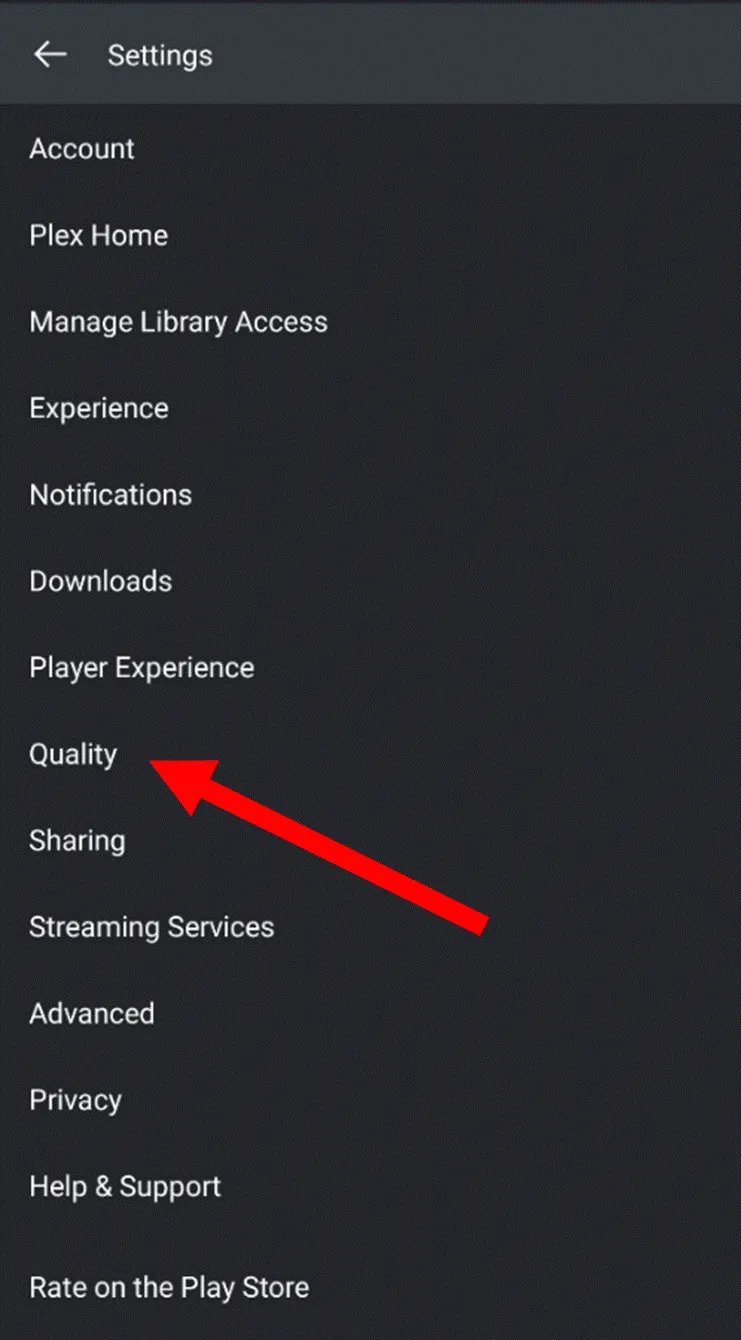
Please ensure that ALL settings in Quality match the configuration shown in the image.
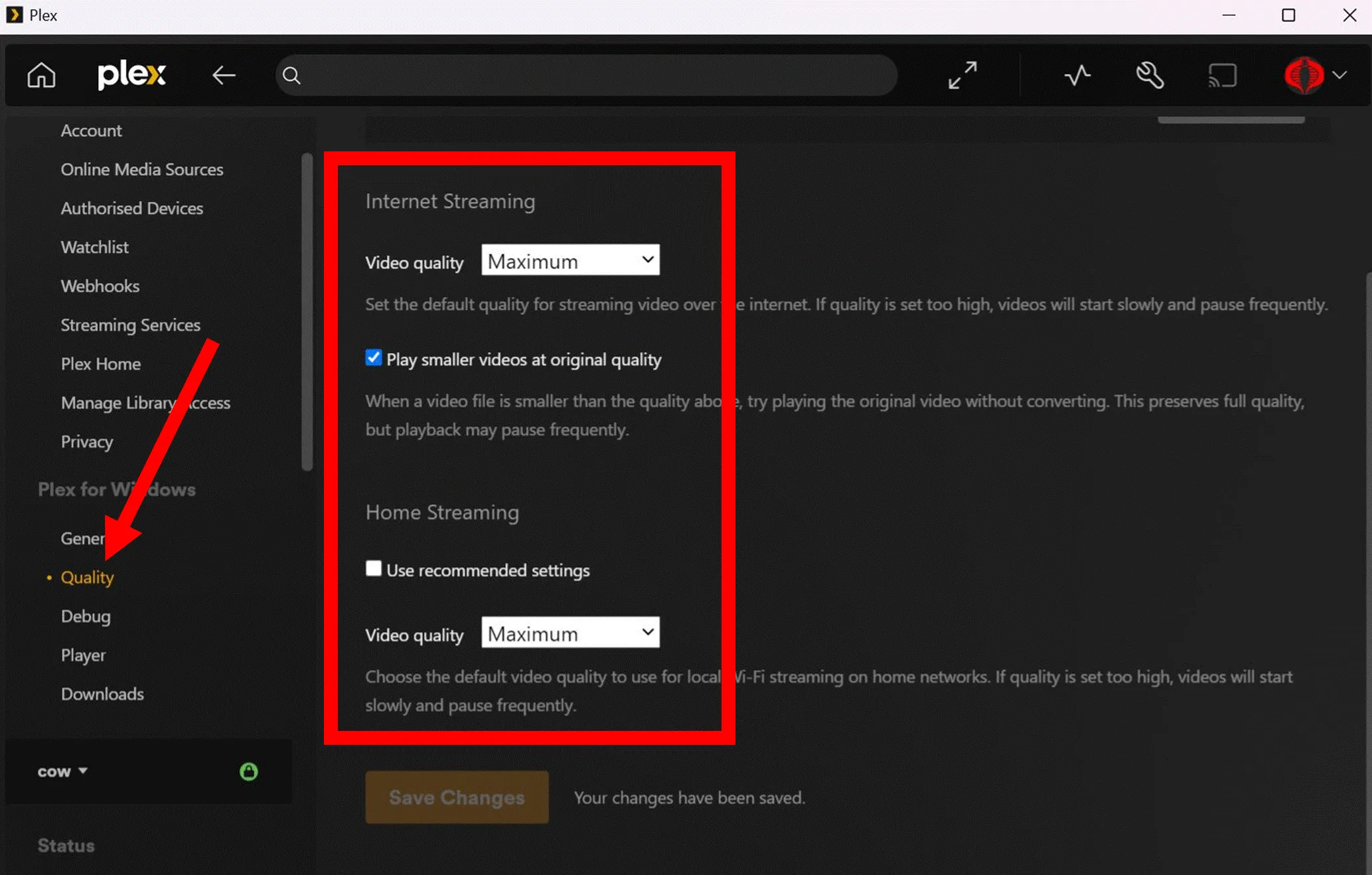
Windows Client
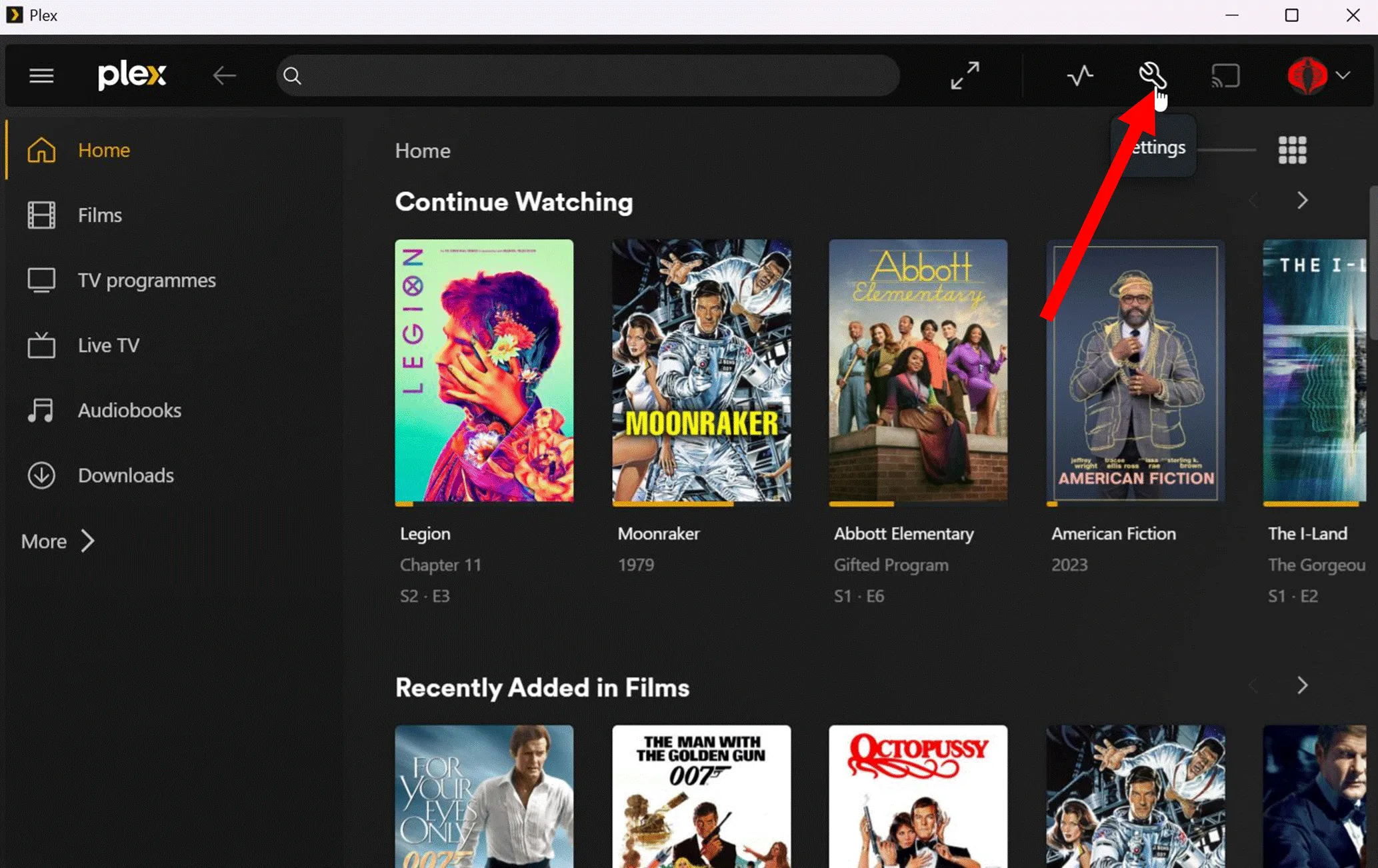
Please ensure that ALL settings in Quality match the configuration shown in the image.
Apple Client
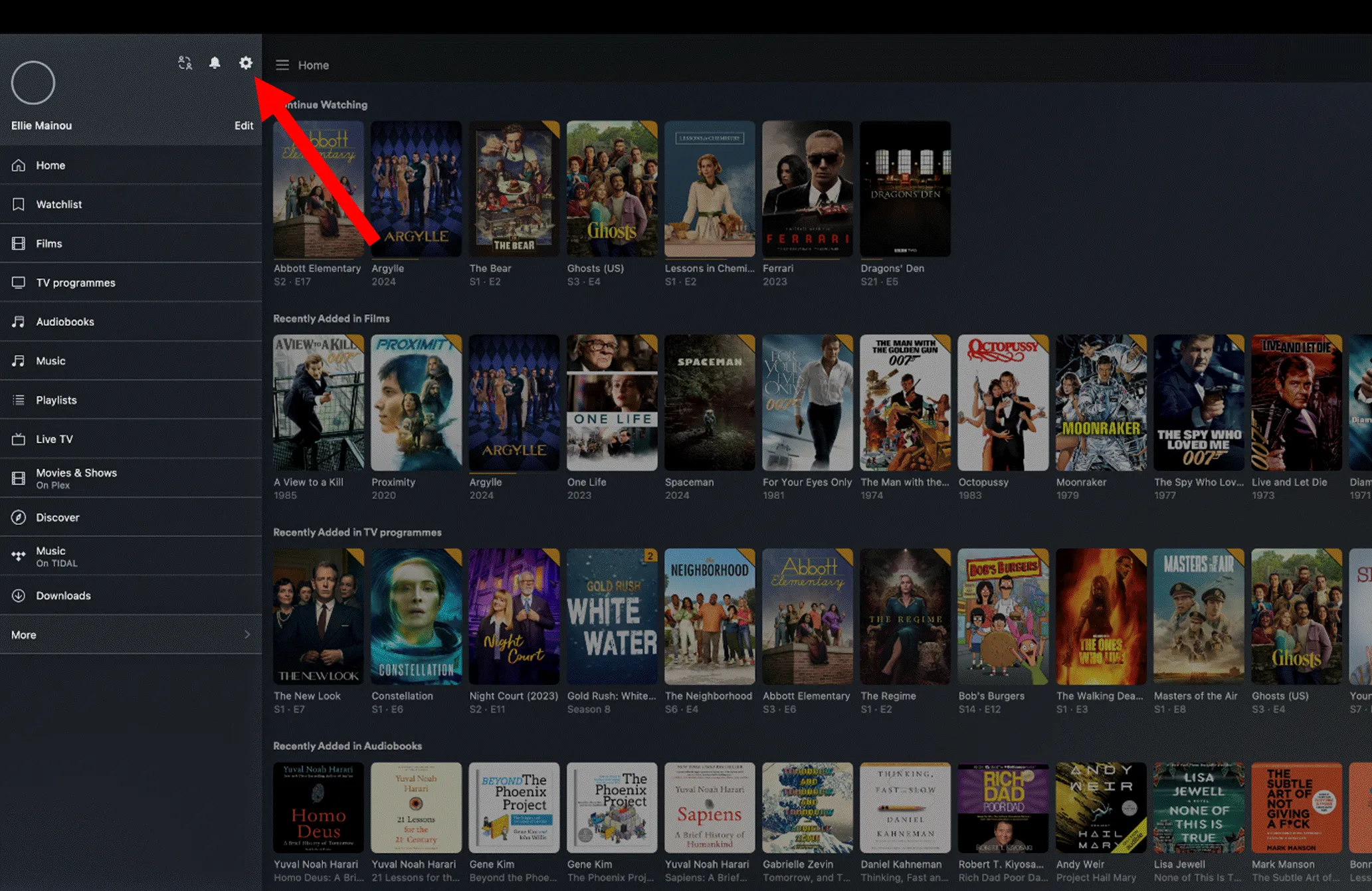
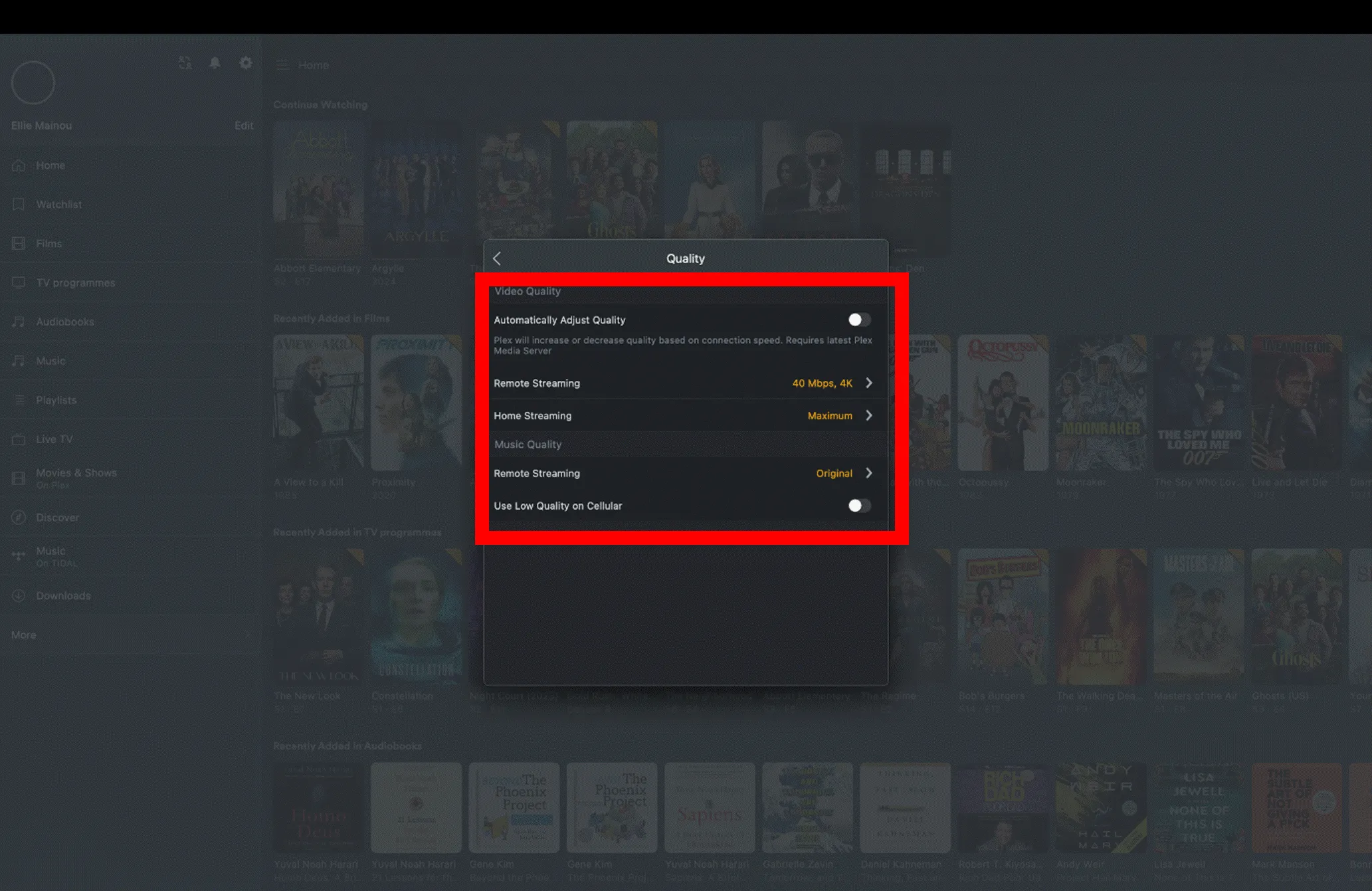
Please ensure that ALL settings in Quality match the configuration shown in the image.